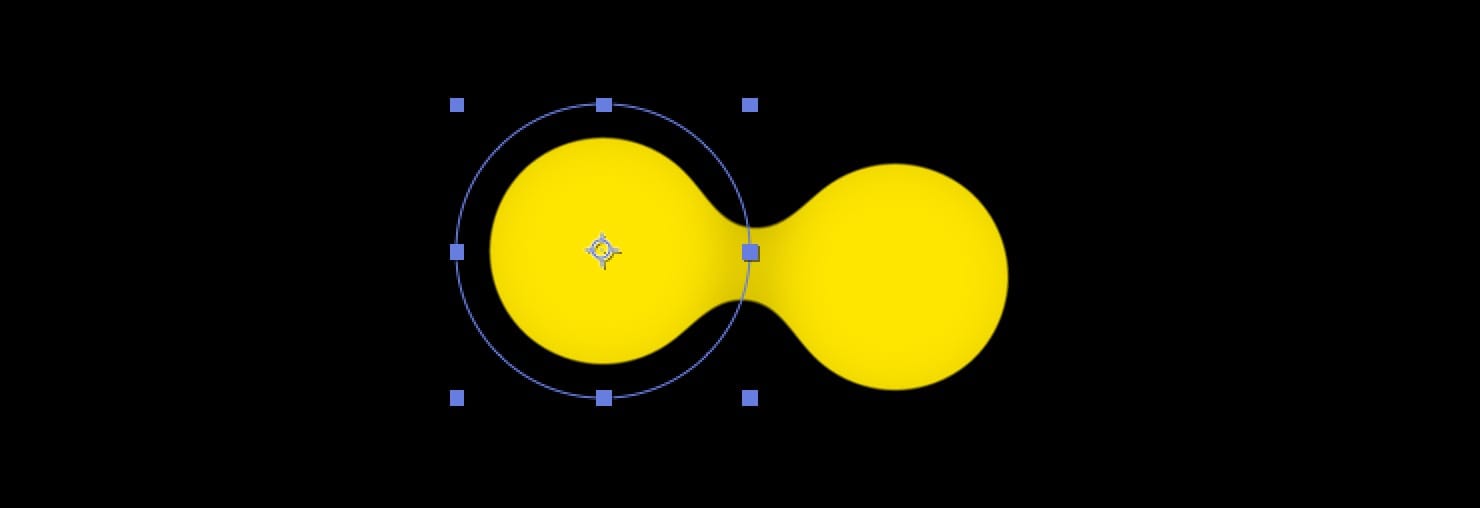
How it works
- Apply a blur effect to the shape layers so their edges spread outward and partially overlap when the shapes get close;
- Use a choke effect to determine which edges to keep. When 2 shapes are close, the blurred parts overlap, so those parts are counted as needing to be kept;
- Adjust the blur amount and the range of the choke tool separately so that the blurred parts are removed and only the sharp parts remain, producing the merge effect.
Let’s get started.
Add a blur effect
Create a new adjustment layer above the shapes you want to merge, and add 1 blur effect to it. Below are 2 blur effects; choose one:
Fast Box Blur

Blurs the current layer quickly.
- Blur Radius is the radius of the blur; it controls how strong the blur is
- Iterations controls how many times the blur is applied
- Blur Dimensions controls horizontal blur, vertical blur, or blur in both directions
- Repeat Edge Pixels fills the current layer and prevents the edges from turning transparent when blurred
(Optional) Gaussian Blur

It has only 1 parameter, Blurriness, and can produce the same effect as Fast Box Blur.
Add a choke effect
Simple Choker

This tool shrinks the edges of a layer using the Choke Matte parameter. The larger the value, the more the edges shrink. If the value is negative, it expands the edges instead.
Adjust the parameters
Finally, adjust the following 2 parameters appropriately to achieve the merge effect (the larger the 2 values, the stronger the merge effect):
- Blur Radius (or Blurriness in Gaussian Blur)
- Choke Matte
-
Previous
Exporting Azure Speech on macOS with OBS and Blackhole -
Next
Batch merging videos with ffmpeg without rendering