When I’m writing in Markdown, I often find myself wanting to add images. But where does the image URL come from? I have to upload it to an online image host first. But every time I want to add an image, I have to open the image hosting site, upload it, then come back — by then I’ve already forgotten what I was going to write.
Recently I found a handy tool: uPic. It lets me press a few shortcuts, and then I can paste the Markdown code for the image I need straight into my editor with command + v!
What you need
- A computer running macOS (if you’re on another operating system, you can try this tool [PicGo](https://github.com/Molunerfinn/PicGo))
- An Amazon S3 account (this article mainly covers configuring this image host, but you can use other image hosts)
Steps
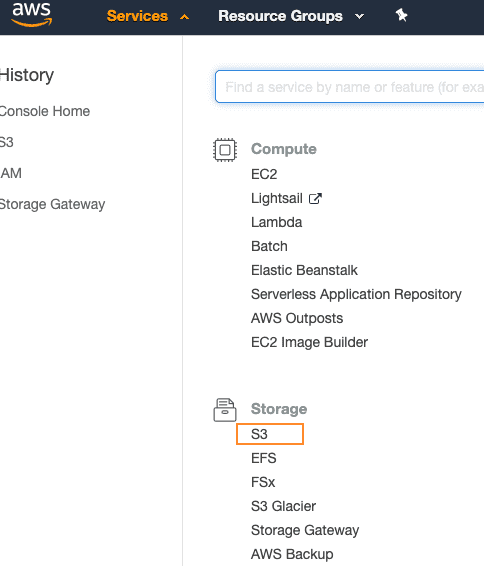
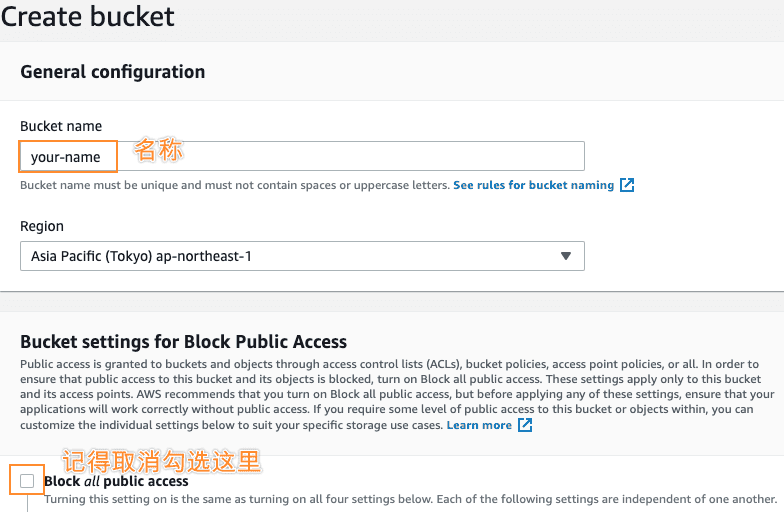
Create a bucket in Amazon S3
For security, create an IAM account specifically for connecting to S3 storage
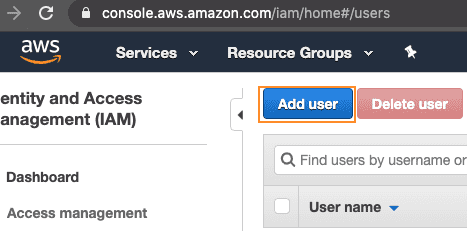
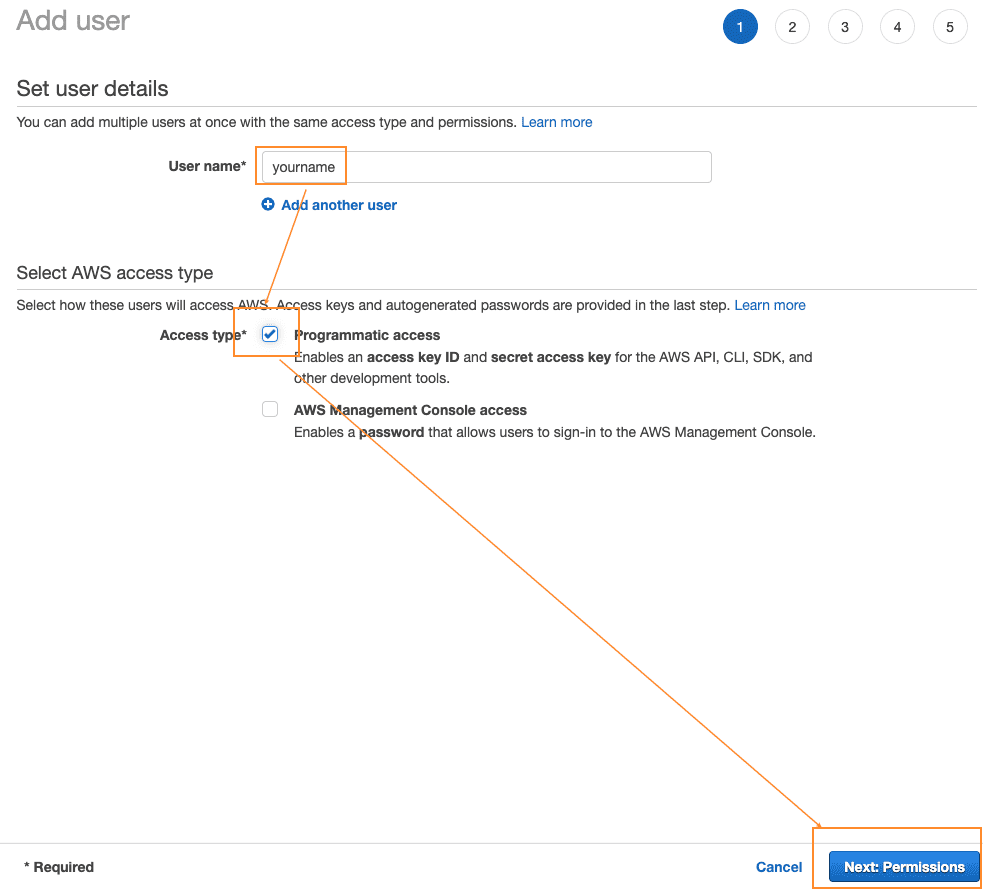
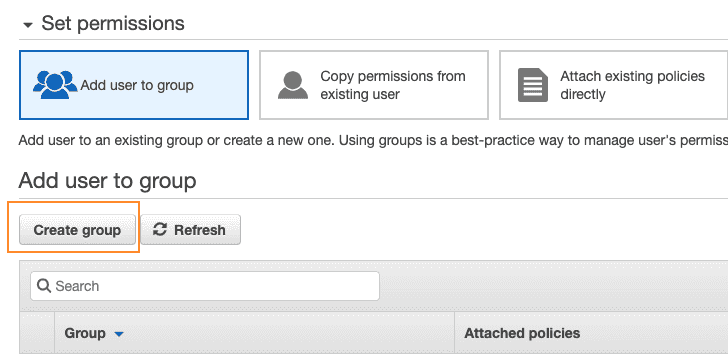
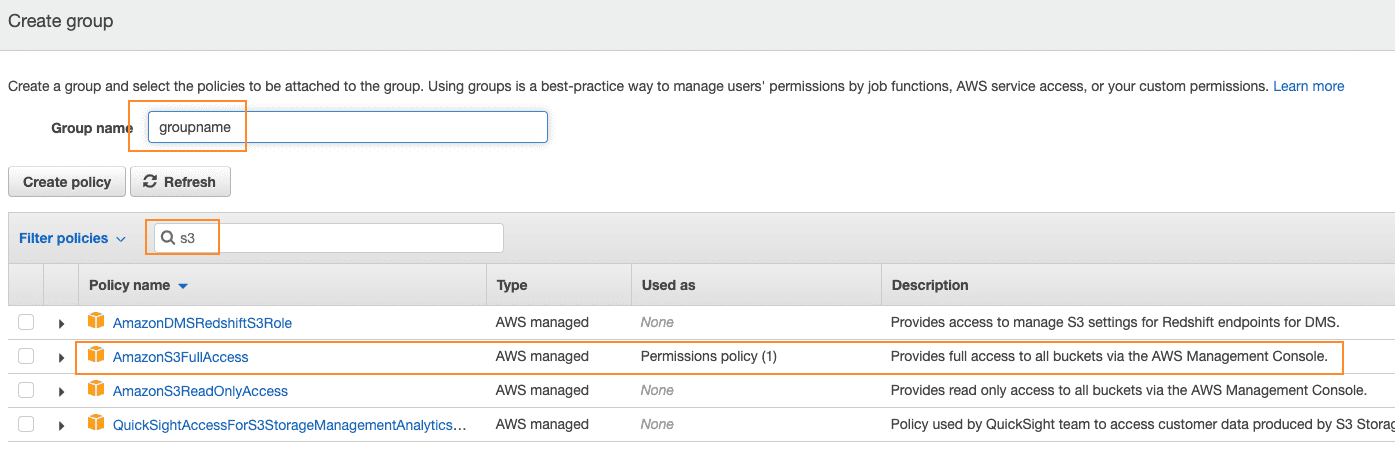
At this point the group has been created. Then, when creating the user, select this group in step 2:
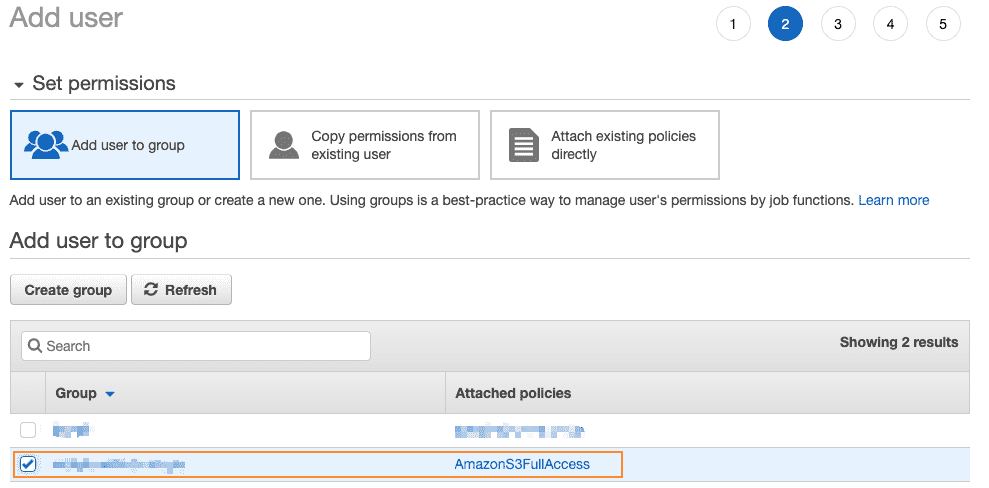
Keep clicking Next. Once the user is created, write down the Access Key ID and Secret access key. Remember, the Secret access key only appears here once and won’t be shown again, so be sure to write it down.
Install Homebrew (skip if already installed):
$ /bin/bash -c "$(curl -fsSL https://raw.githubusercontent.com/Homebrew/install/master/install.sh)"
Download and install uPic
$ brew cask install upic
Configure uPic
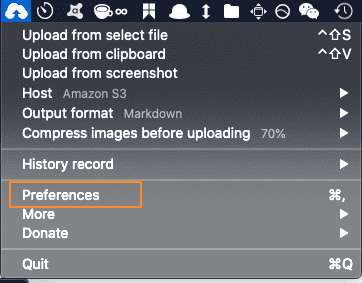
After installation, find uPic in Applications and open its Preferences:
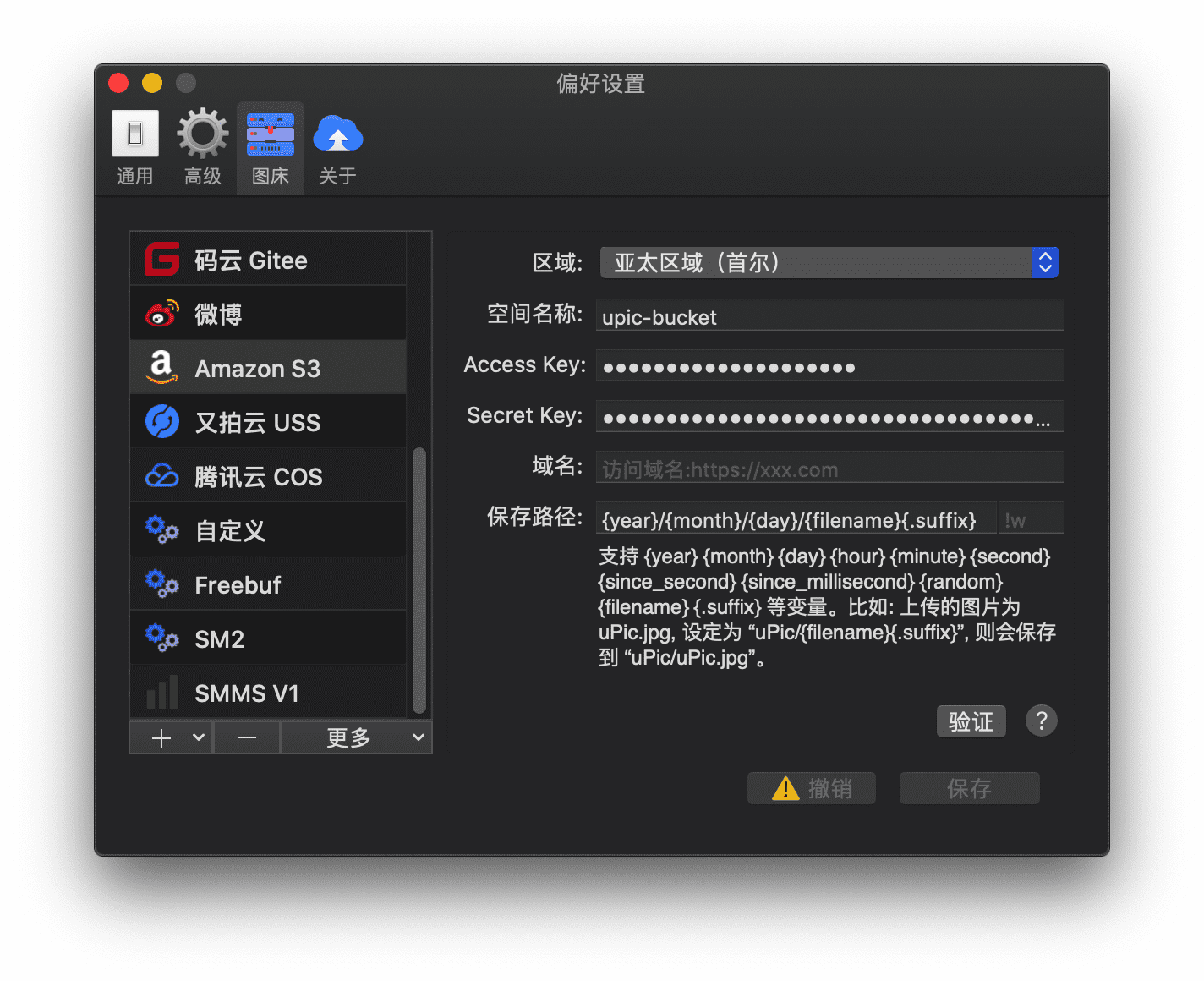
Add an Amazon S3 image host here:
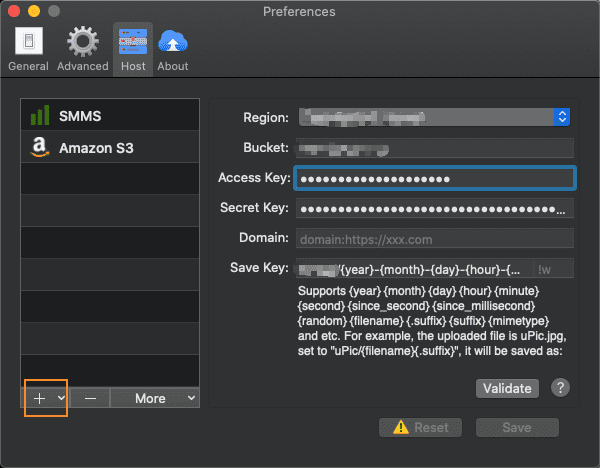
There are 6 input fields here. You don’t need to fill in the Domain field yourself; Amazon will assign one to you. The other 5 are:
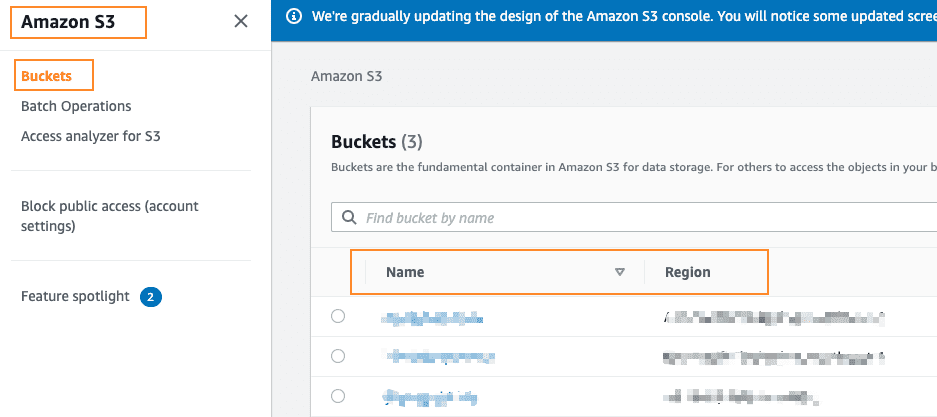
Region and Bucket: you can find these in the Buckets list in Amazon S3.
Access Key and SecretKey: you already noted them down when creating the user.
Save path: this is mainly for customizing the path and filename used when storing files. Set it according to your needs.
Detailed instructions: https://blog.svend.cc/upic/tutorials/amazon_s3/
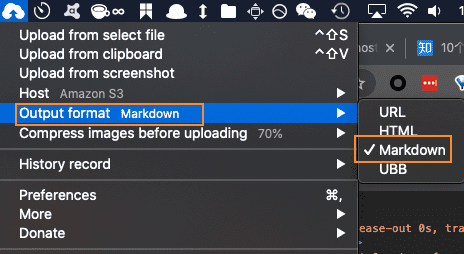
Finally, click validate, and a sample image will be uploaded to your Amazon S3 storage, with the link also copied to the clipboard. If you need the link in Markdown syntax, check markdown here:
Custom shortcuts
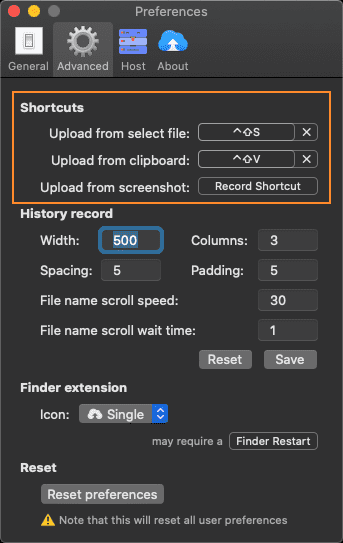
Set up the shortcuts you want to suit your needs:
In practice
For example, I’m writing, and suddenly I want to pick a nice image from my local files. Then I select the image and press “control + option + s” (the shortcut I set up myself). The image is automatically uploaded to S3. When I go back to the Markdown editor and press “command + v”, the image is right there. Much faster, isn’t it?
About uPic
https://blog.svend.cc/2020/01/05/upic/
-
Previous
How to Download Blob-Encrypted Videos -
Next
The Purpose of the value Variable in AE Expressions